Customers at a glance
The Customers screen is your central workspace for reviewing every customer account, checking activity totals, opening contacts, importing records, and creating a new customer.
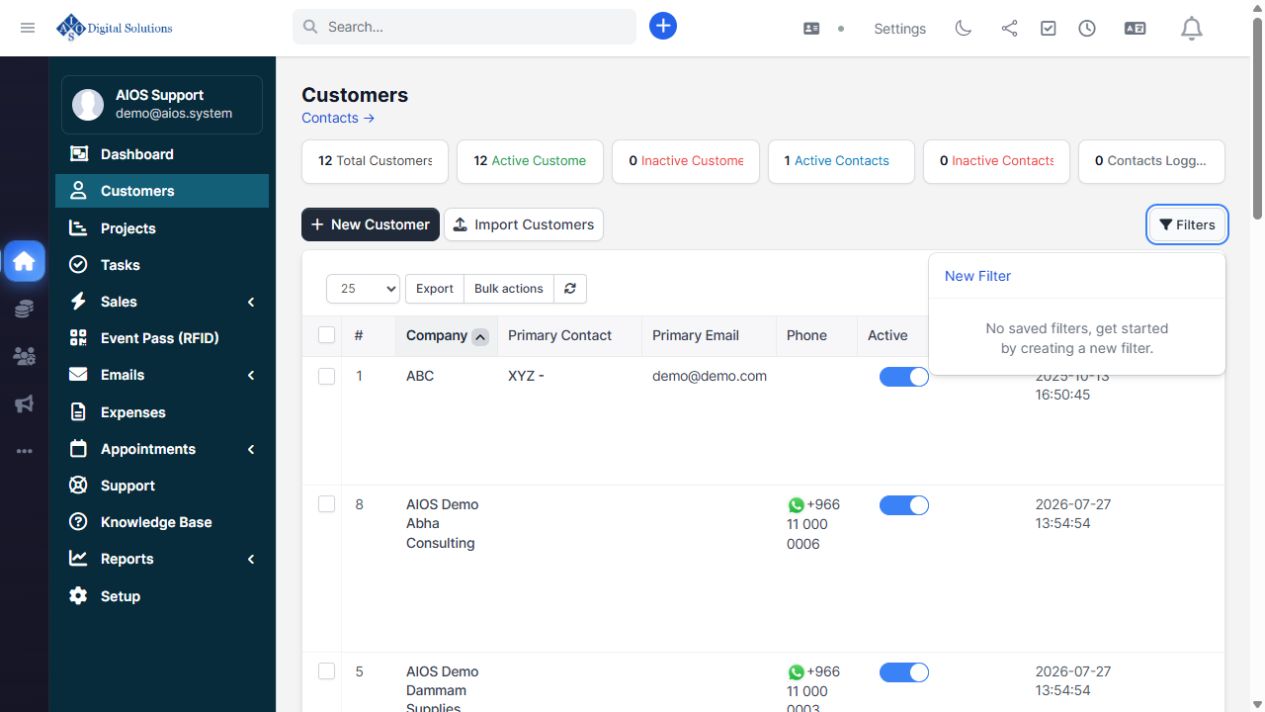
Demo view: the sample data shows the available filters, export menu, bulk actions, search, page-size control, and customer table columns.
What you can do from this screen
- Review totals: see total, active, and inactive customers plus contact activity at a glance.
- Find a customer: use the table search field or sort a column such as Company, Active, Groups, or Date Created.
- Filter the list: open Filters to create or reuse a saved filter.
- Export records: use Export to download the current customer list.
- Run bulk actions: select one or more rows, then use Bulk actions for the available batch operations.
- Create or import: choose New Customer to add one account or Import Customers to bring in a prepared list.
Customer record tabs
When you open New Customer or edit an account, the form is organized into three tabs:
- Customer Details: company identity, contact information, currency, language, groups, and address.
- Custom fields: organization-specific fields such as Birthday, Building Number, and District.
- Billing & Shipping: billing and shipping addresses, with shortcuts to copy customer or billing information.
For a step-by-step form walkthrough, see Create a Customer and Prepare Billing Details.
Safe operating checklist
- Confirm the correct customer before changing financial or contact information.
- Use filters before bulk actions so the selected scope is clear.
- Review the filtered result count before exporting or applying a batch operation.
