Navigate your AIOS 360 workspace
Welcome to AIOS 360. This guide introduces the main navigation tools so you can find information, create records, and move between workspaces with confidence.
Note: The tools and modules available to you may vary depending on your access permissions and your company's configuration.
Use the top toolbar
The toolbar at the top of the screen provides quick access to everyday tools.

- Notifications: Review updates and alerts.
- Language: Switch between the available interface languages.
- Personal to-do list: View and manage your tasks and reminders.
- Internal sharing: Share documents and ideas with your team.
- Display settings: Change the interface appearance, including the available theme options.
- Settings and profile: Access the settings and account options available to you.
Find information with global search
Use the search bar at the top of the screen to find records without navigating through each module.
- Click the search bar.
- Enter a relevant keyword or identifier, such as a contact name, email address, phone number, customer website, invoice number, or vendor name.
- Select the matching result to open the record.
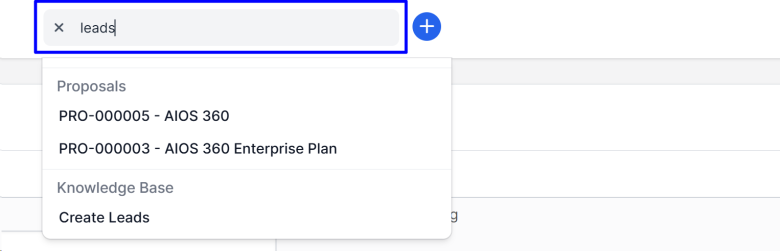
Tip: Use a specific name or reference number to make the results easier to narrow down.
Create records with Quick Create
The plus (+) button opens the Quick Create menu, giving you shortcuts to the record types available in your account.
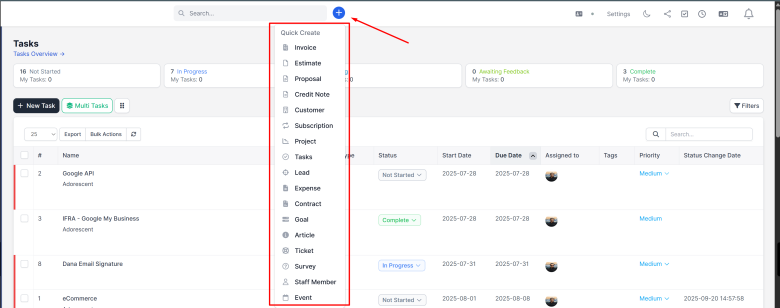
- Click the plus (+) button in the top toolbar.
- Choose the type of record you want to create, such as a lead, customer, task, or invoice.
- Complete the required fields in the form, then save the record.
Switch between workspaces
The main menu on the left organizes your AIOS 360 modules into workspaces. These workspaces help you move between related areas of the system.
- Select a workspace using the icons on the far left of the screen.
- The navigation menu displays the modules assigned to that workspace.
- Open a module, then choose the page or action you need from its menu.
Watch the video below for a demonstration of workspace navigation.
Need more help?
If you need help finding a feature or using the navigation tools, contact support@aios.digital. Include the page or module name and a brief description of your question so the support team can assist you.
